Category: Tutorials
-
How To Adjust Speed

Adjusting speed is easy in Genny. Follow the step-by-step guides below! Changing Speed You can change the speed of any voice and each individual voice block by clicking on the Speed icon at the top of the voice block. You can also change the speed for multiple voice blocks in one go in the workspace.…
-
How To Edit Images
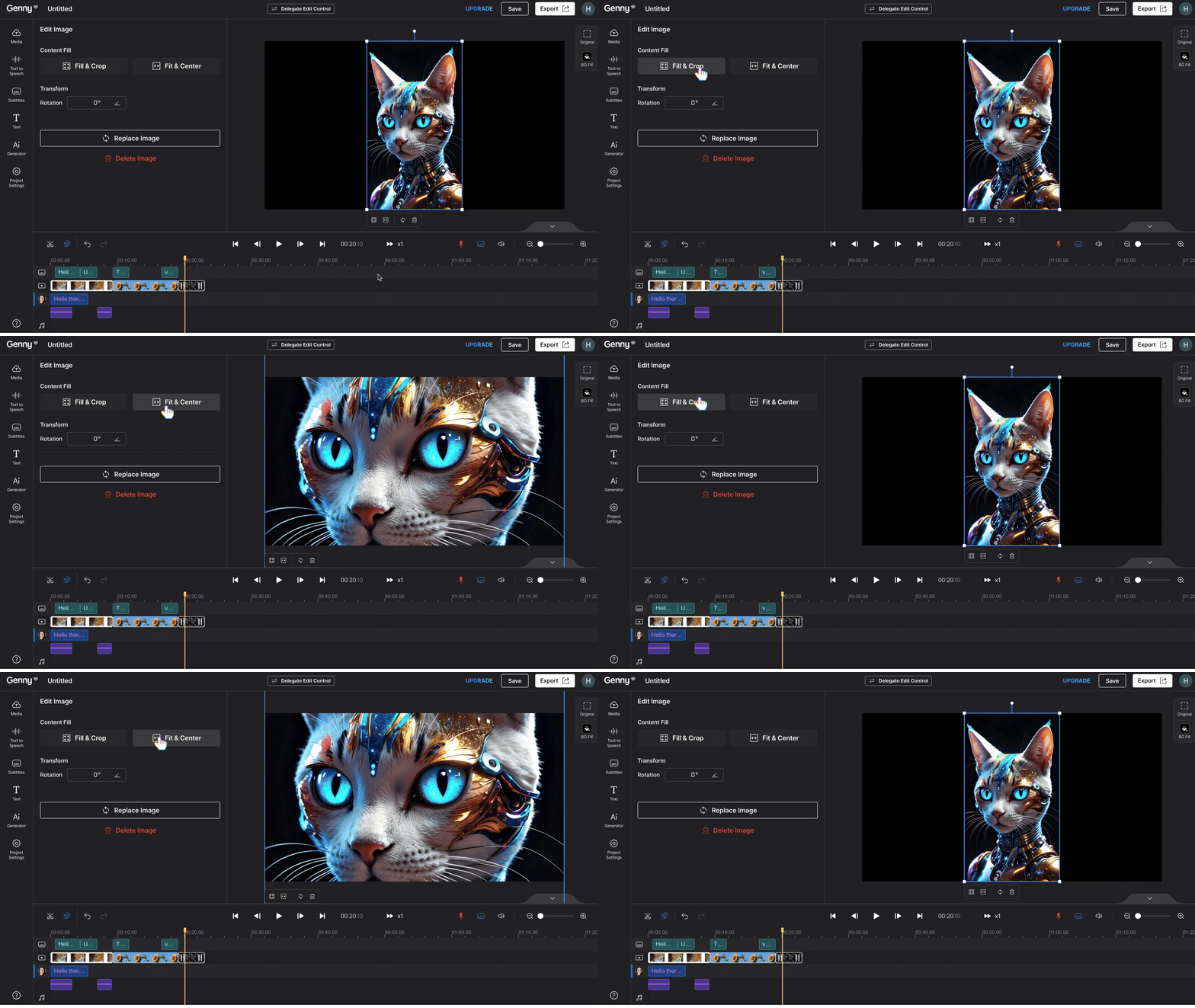
Here are the tutorials for demonstrating Genny’s range of image editing features. Follow along to explore Genny’s user-friendly video editing interface! |Reminder: This feature is applicable to videos as well! Fill & Crop vs. Fit & Center Fill & Crop: This feature fills the entire canvas with the image. When the image doesn’t perfectly match…
-
How To Use Voice Enhancer
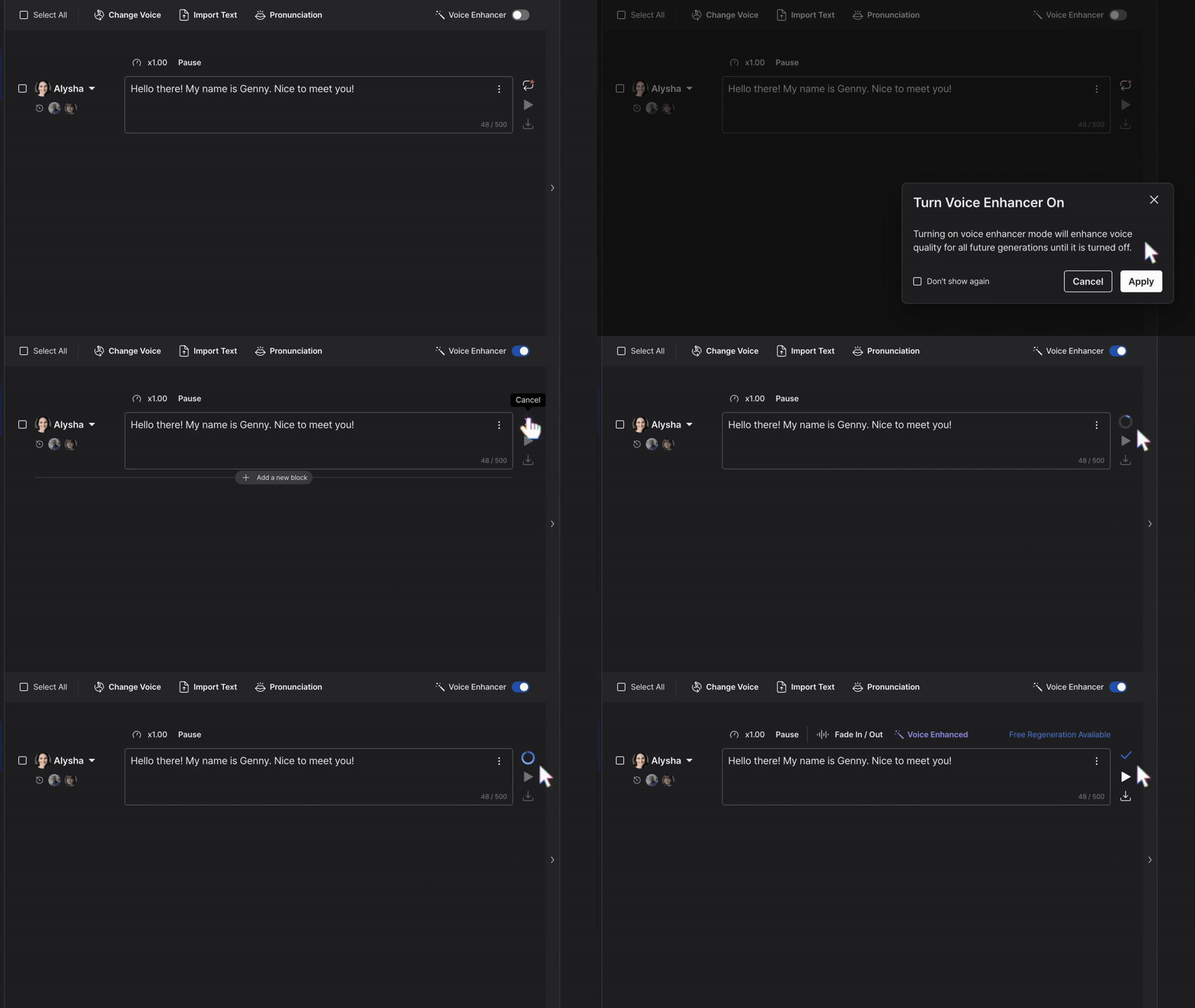
Our Voice Enhancer feature enhanced your AI voices generated in Genny for clearer, crisper, and higher quality voices! Here are the steps to using the Voice Enhancer tool! Step 1: Enter text Enter your text into a voice block. You can either directly enter your text by typing it into the voice block or copying…
-
How To Use Voice Recording

If you want to just simply record your voice over a video rather than using TTS, you can do so by using “Voice Record”. Step 1: Getting Started First, have a project opened and ready. Click on a red microphone icon on the right side of the timeline editor. Step 2: Record Adjust the yellow…
-
How To Use Generation History

Don’t let your prior generations go to waste when using Genny AI Generator tools! To help you freely pick and choose the images and sound effects you generated previously, you can use the “Generation History” feature for easy access. Step 1 Click on “AI Generator” on the left-hand side. Then, click “Generation History” to see…
-
How To Change Aspect Ratio and Background Fill
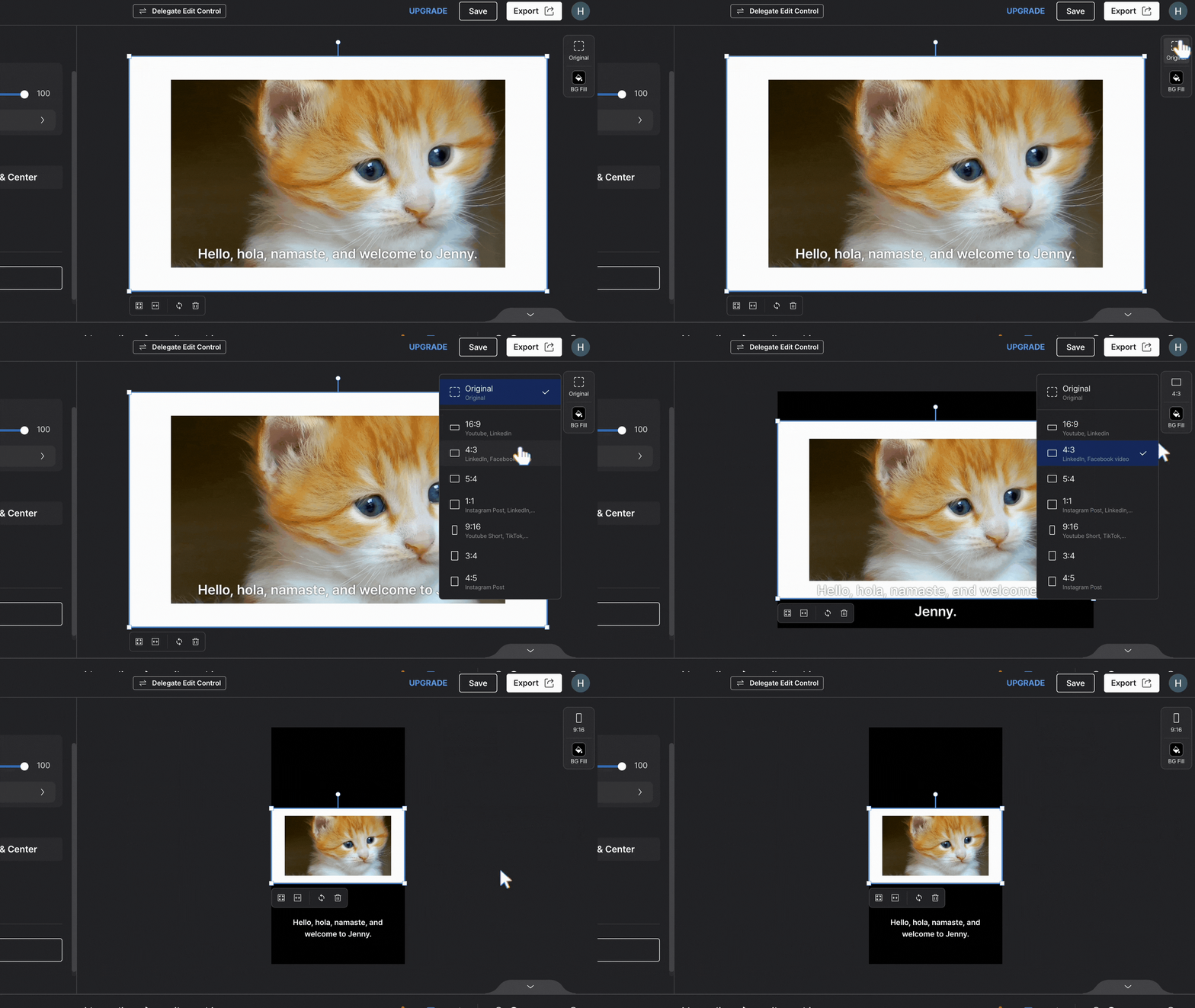
Expand your use of Genny using these two display features: Aspect Ratio and Background Fill. Follow the step-by-step guide below! Using Aspect Ratio The aspect ratio feature is essential for creating projects for different content-generating platforms (YouTube, YouTube shorts, Linkedin, Instagram posts, TikTok, etc.) To use this, click on “Aspect ratio” in the top-right corner…
-
How To Use Audio Fade In / Fade Out

The Audio Fade In/ Fade Out feature allows a professional intro, transition, and ending of audio blocks. It applies to music blocks, sound effect blocks, voice blocks, and video audio. In this tutorial, we’ll go through the fundamentals of how to use the Audio Fade In/ Fade Out feature for enhancing your audio editing skills.…
-
How To Pause Your Subscription

Suppose you are not using your subscription plan for a while, but don’t want to cancel your subscription In that case, the pause subscription feature offers an alternative to canceling your subscription plan entirely, which pauses payment for a number of months before using your subscription again. The pause subscription is only available for monthly…
-
How To Create A Team
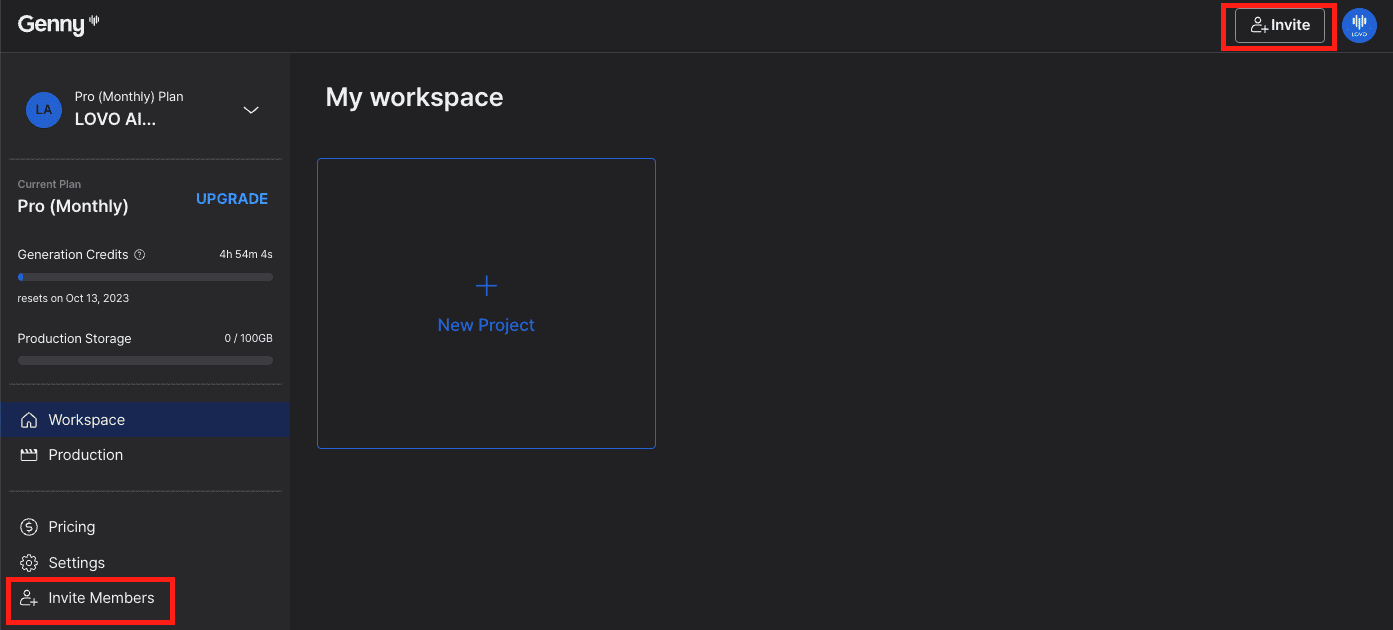
To create a team, you need to be a Pro, Pro+, or Enterprise user. If you are a free or basic user, you can upgrade your subscription to Genny with just a couple of clicks. Step 1 Click on the “Invite Members” button, which can be found on the left of your workspace or at…
-
How To Generate Sound Effects With AI Sound Effect
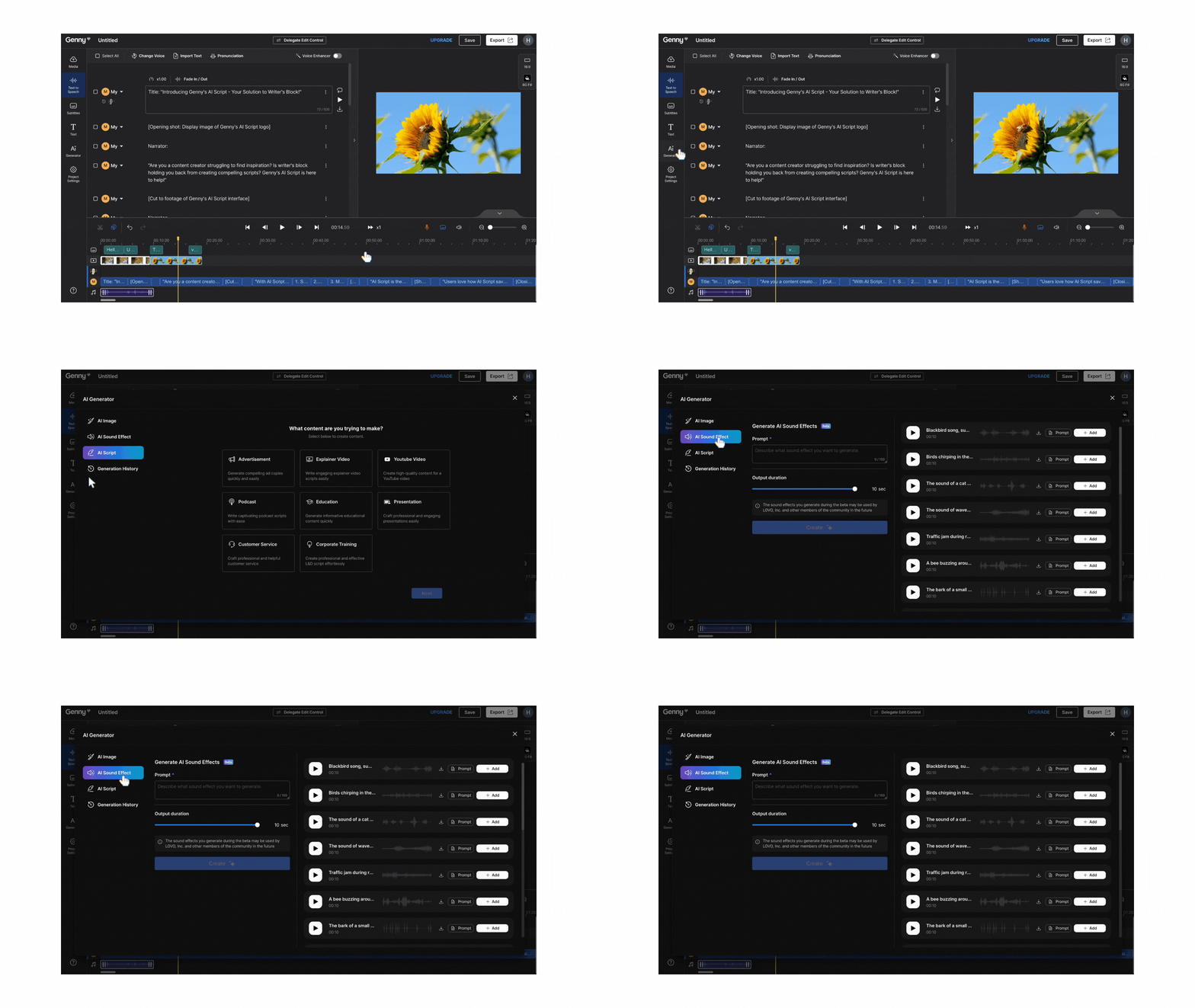
Using the AI Sound Effect helps you create the best sound effects for your content. Here in Genny, you can input your own creativity through our AI-generated sound effects feature. This tutorial will take you through the steps to generate your first sound effect and how to add it to your project. AI Sound Effect…
-
Using The Timeline Editor
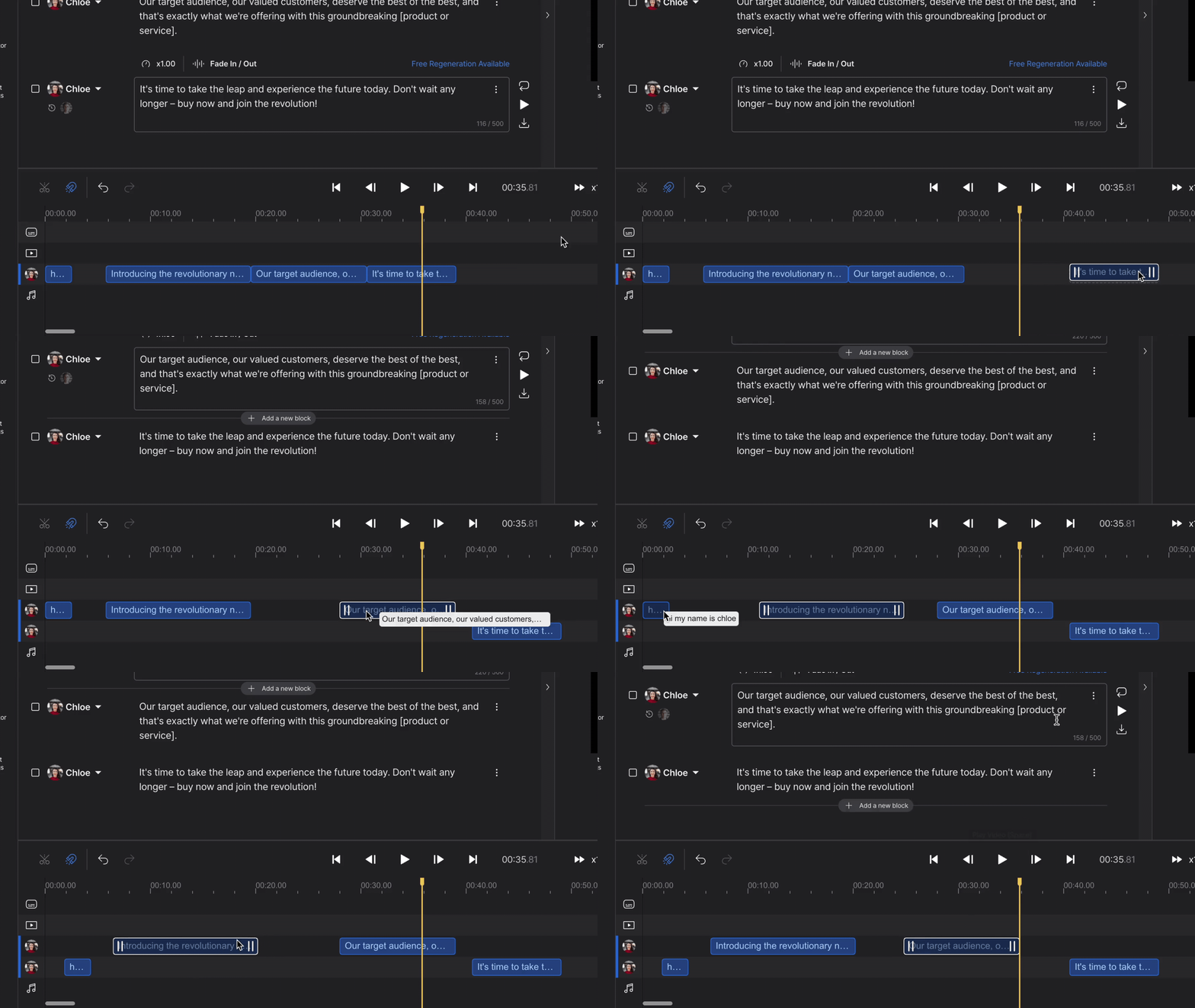
The Timeline Editor is a powerful tool to help you edit your audio and video elements together into one piece of content. Use this tool to handle the timing of videos, voiceovers, music, and sound effects with millisecond control. Using the Timeline Editor is invaluable when you have multiple elements that need to be timed…
-
Adding Subtitles

Adding subtitles to your video takes just a few clicks and instantly increases your reach to new audiences. In this guide, we’ll take you through the steps to get you generating your subtitles in minutes! Step 1 – Select Subtitle Option We recommend adding subtitles as the last step before exporting. This is especially important…
-
How To Generate Images With AI Image

Adding images to your content can be a great way to bring your content to life. In addition to stock images that are available for use in Genny, you can create your own AI-generated image using our AI Image tool. This tutorial will take you through the steps to generate your first image and how…
-
Creating A Script With AI Script

Before you can start generating your voice, you first need a script! For most of us, we have an idea of what content we want to produce but no idea where to start. This is where our AI Script scriptwriting tool can help you out. In this tutorial, we’ll run through the basics of how…
-
Getting Started With Genny API
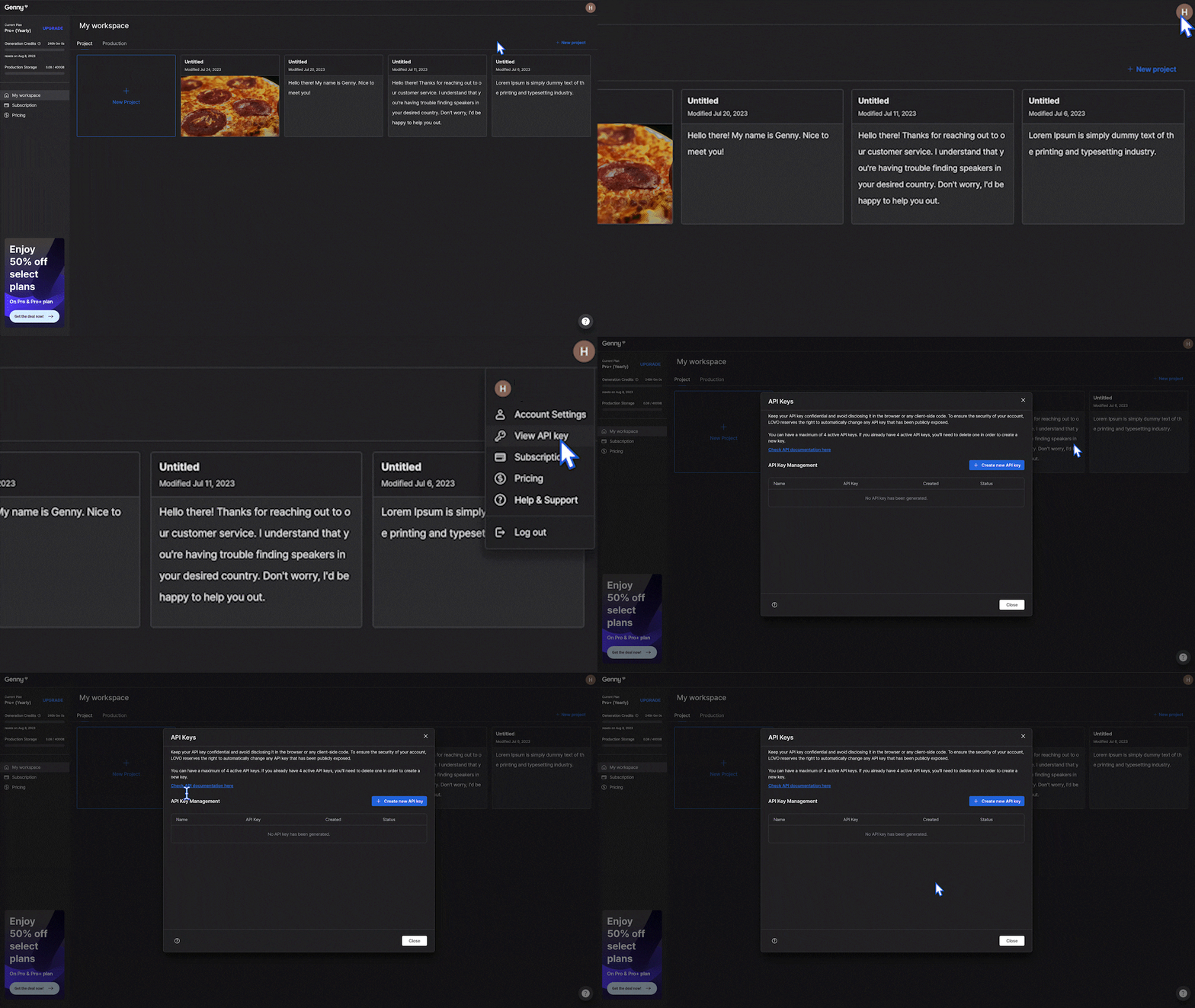
Now you can use our voices to integrate with your apps to create a new user experience! We are going to take you through a step-by-step guide to create your first text to speech AI voice with Genny API. Step 1 – Find Your API Key Log into your Genny account and click on your…
-
How To Create Custom Voices
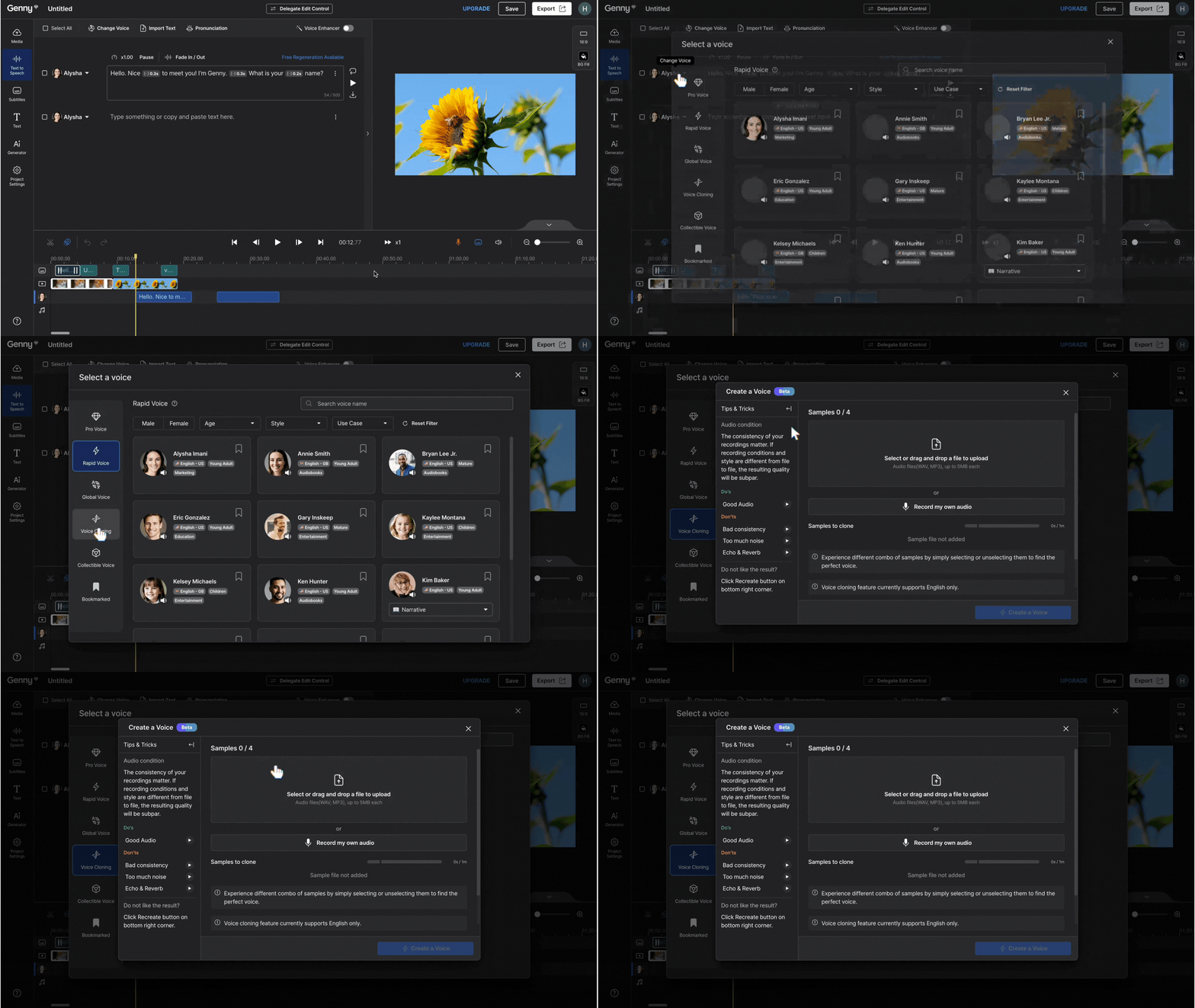
Using custom voices gives you the freedom to be able to create the exact voice you want for your content. This is especially helpful for those who: 1. Want to use their own voice for their content without recording every time. 2. Create specific voices that are unique and the exact fit for their content…
-
Cancelling Your Subscription

Canceling your subscription is easy. While we don’t want you to go 🥲, we also don’t want to make canceling difficult. When you cancel your paid subscription your account will automatically become a “Free” plan so you won’t lose any projects you have completed in the past. You can also upgrade to a paid plan…
-
How To Resample Downloaded Audio File Using Audacity
When you download audio files from Genny, it will be 44.1 kHz. To resample into higher or lower sampling rate, you can use free software like Audacity to do so. Here are the step-by-step. 1. Open Audacity. 2. Load your audio file into Audacity by drag and drop, or by going to File>Open>choose file. 3.…
-
Pro Voices: Discover Best Practices And Troubleshooting Tips
Pro voices are magical. They produce near-human-level quality voices with natural inflections and filled with emotions that fit the context. However, there are some pointers that you need to know in order to bring out the best performance from Pro voices. While Pro voices provide much higher performance than regular premium voices, they are still…
-
Undo and Redo
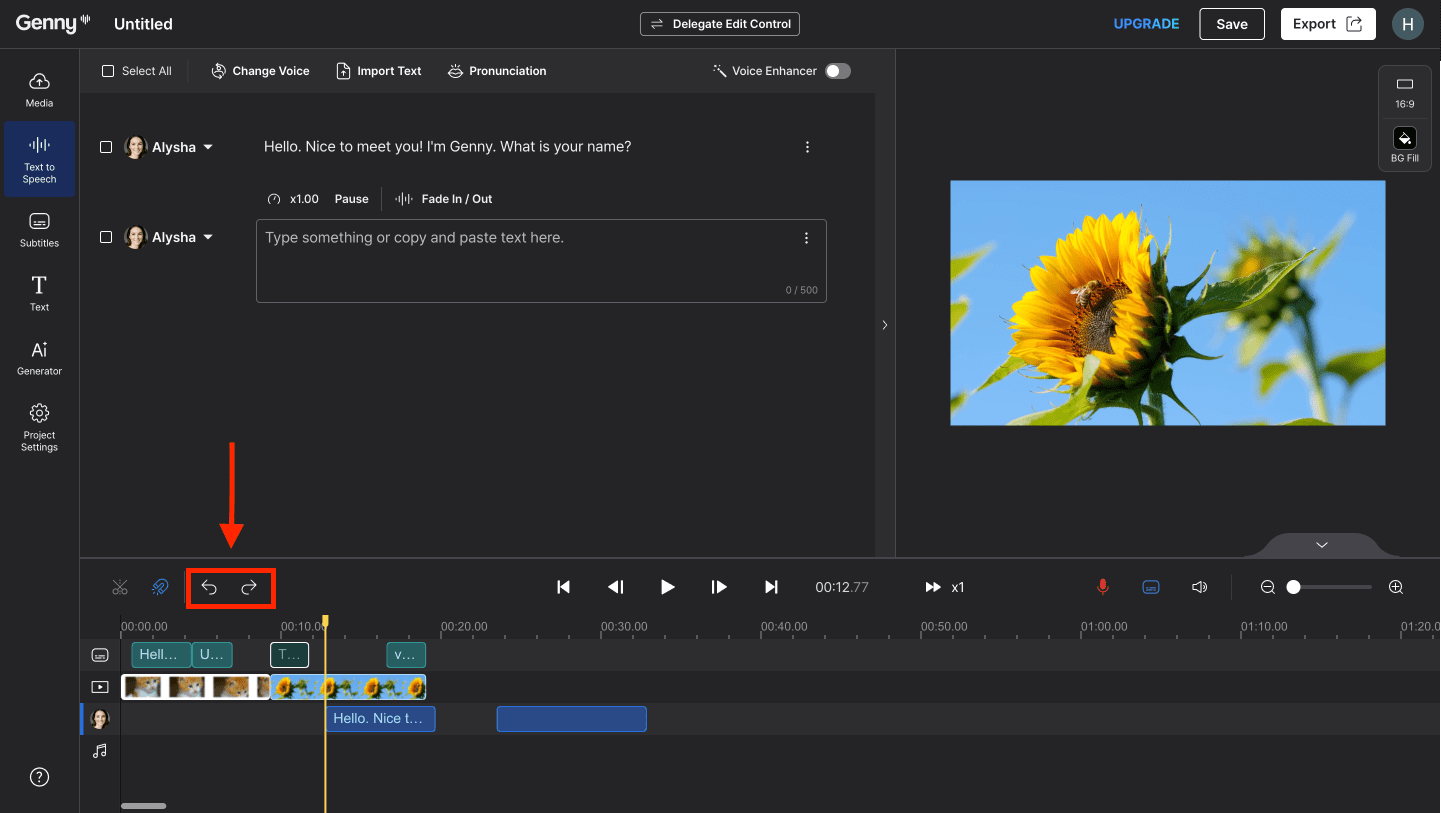
Made a mistake? Don’t worry! You can undo it easily. Simply to Ctrl+Z/Cmd+Z for undo and Ctrl+Shift+Z/Cmd+Shift+Z for redo. You can do this for both voice blocks and timeline blocks!
-
What To Do When Your Voiceover Sounds Weird.
Sometimes the AI might speak in a weird way at the end of the sentence or pronounce some words oddly. Whenever an unexpected result occurs, the first thing we always say is to regenerate – if you do not edit the sentence and just regenerate, it will not affect your generation credit. However, here are…
-
Adding Music & Sound Effects
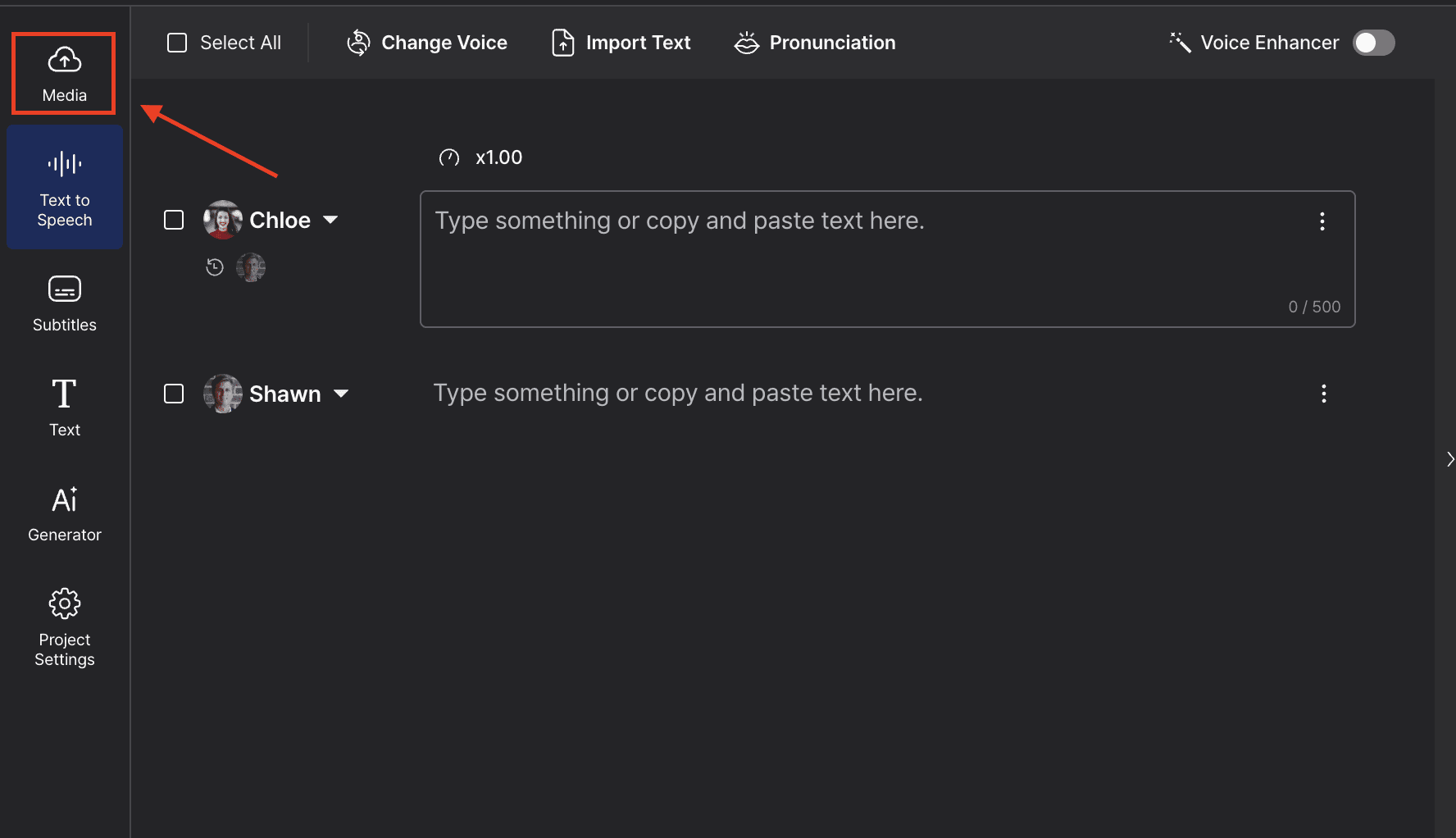
A great video is almost always accompanied by great music and sound effects. We provide a basic library of license-free music that you can choose from, or you can upload your own. Here’s how to get started. Adding Audio To Your Project Step 1 Click on “Media” on the left-hand side. Step 2 Next, click…
-
Billing History And Payment Method
It’s super easy and quick to change your payment method. In the Workspace window, click on “Subscription” on the left-hand side. The “Next payment details” shows you the amount and date, along with your payment method for your next payment. Click on the “Change” button that is next to your card details, and input your…
-
View or Upgrade Subscription Plan
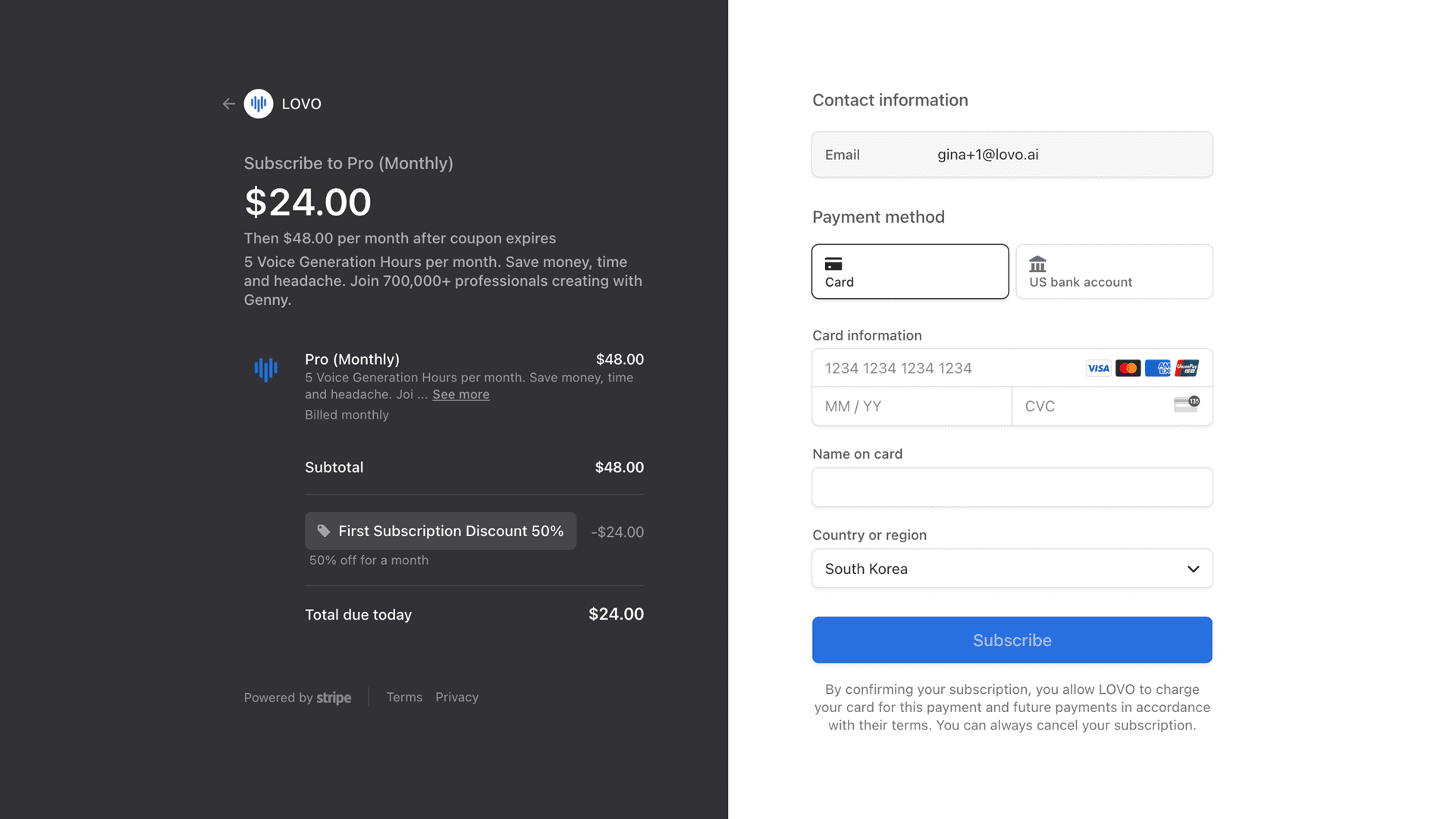
To see what your current subscription plan is, click on the “Subscription” tab when you are in your Workspace. Here, you will be able to check: You can also change or upgrade your plan on this page by clicking on pricing and selecting the plan you would like to change to. Once you have selected…
-
Acronyms
In most cases, Genny will pronounce acronyms letter by letter. For example, YMCA will be pronounced Y Em See Ae If you want the acronym to be read as is, like SWAT or POTUS, you need to spell it out in lower case letters like swat and potus.
-
Getting Numbers Correct
Numbers can be tricky with text to speech systems. Say you wrote 1979. Did you mean the year nineteen seventy-nine, or did you mean the number one thousand nine hundred seventy-nine? The text to speech system has no way of knowing exactly which way you would like it to pronounce the number. It will guess…
-
How To Add Pauses

The Pause feature captures the intonations and variability of human speech. To bring your voice generation to another level of authenticity, try using our Pause feature! Step 1: Getting Started Click the Pause icon on the left-hand panel. Step 2: Adding Pauses To put a Pause after a word, click a word and select the…
-
Adding Emphasis To Words
When you are using our Rapid voices, you can add emphasis to individual words to add more energy and deliverability to your voiceover. After all, a sentence can mean very different things depending on what word is emphasized. Click on your voice box and select “Emphasis” located just above. Next, click on the words that…
-
Using The Pronunciation Editor
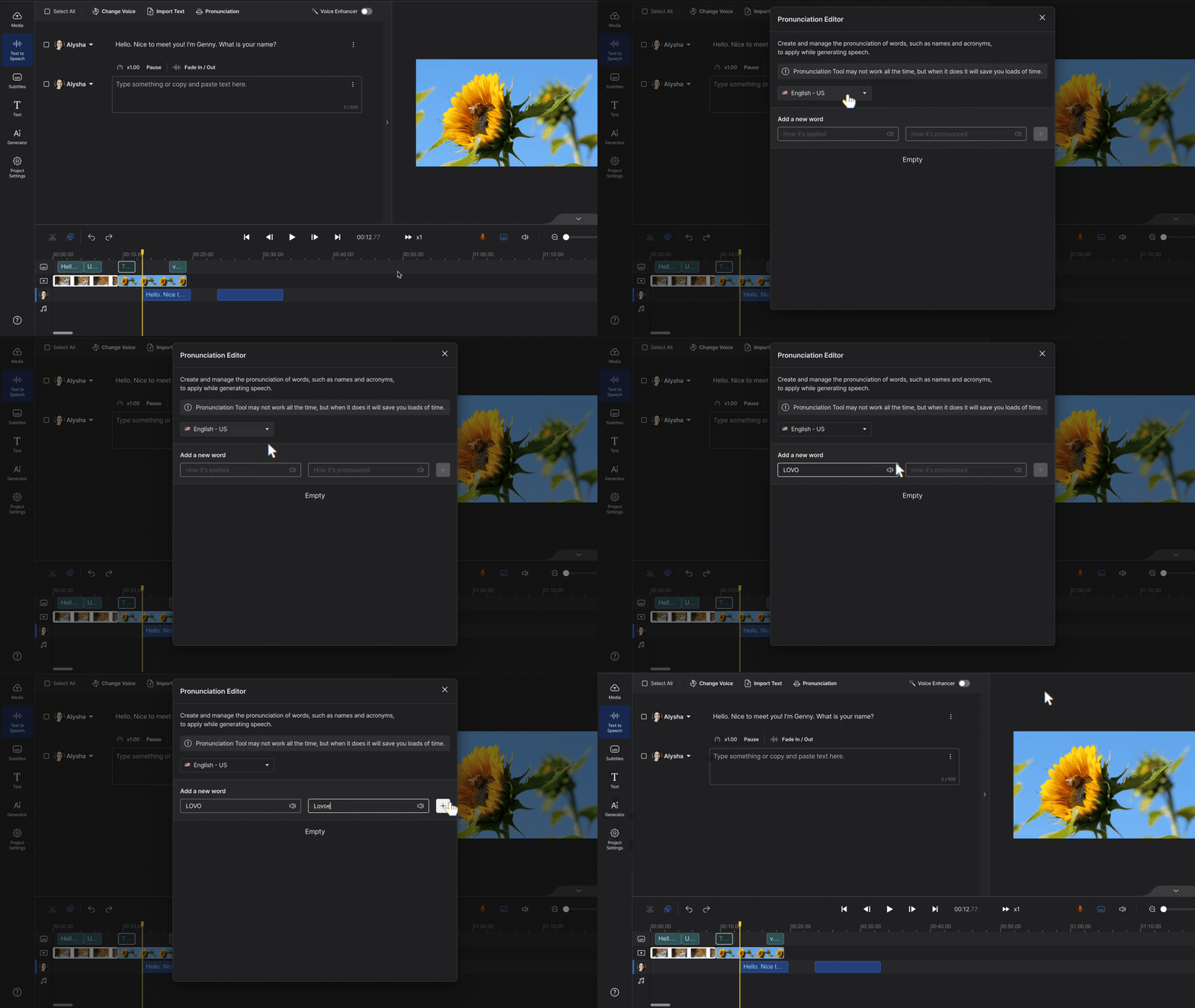
Sometimes the AI won’t say things the way you like. Like pronouncing your client’s brand name wrong 🫠. Our AI is constantly improving and getting better at pronouncing words correctly, but you got a project due tomorrow – what should you do? Well, you have two choices: 1. Spell the word out as it sounds…
-
Uploading A Text Document

Apart from typing directly into the voice block, you can also upload documents into the editor. The file types that Genny accepts are text files (.txt) and Microsoft Word document files (.docx) It’s super simple and takes just two steps to upload your doc! 1. First, click the “Import Text” button on the top-left. 2.…
-
Choosing The Perfect TTS Voice For Your Content

Choosing the perfect Text to Speech voice for your content In this section, we will explore how to choose the perfect text-to-speech(TTS) voice for your content. First, click the speaker icon to access the Voice Selection Panel. LOVO Voices Once the voice selection is open, you will see we have 5 different voice types on…
-
Creating A Video
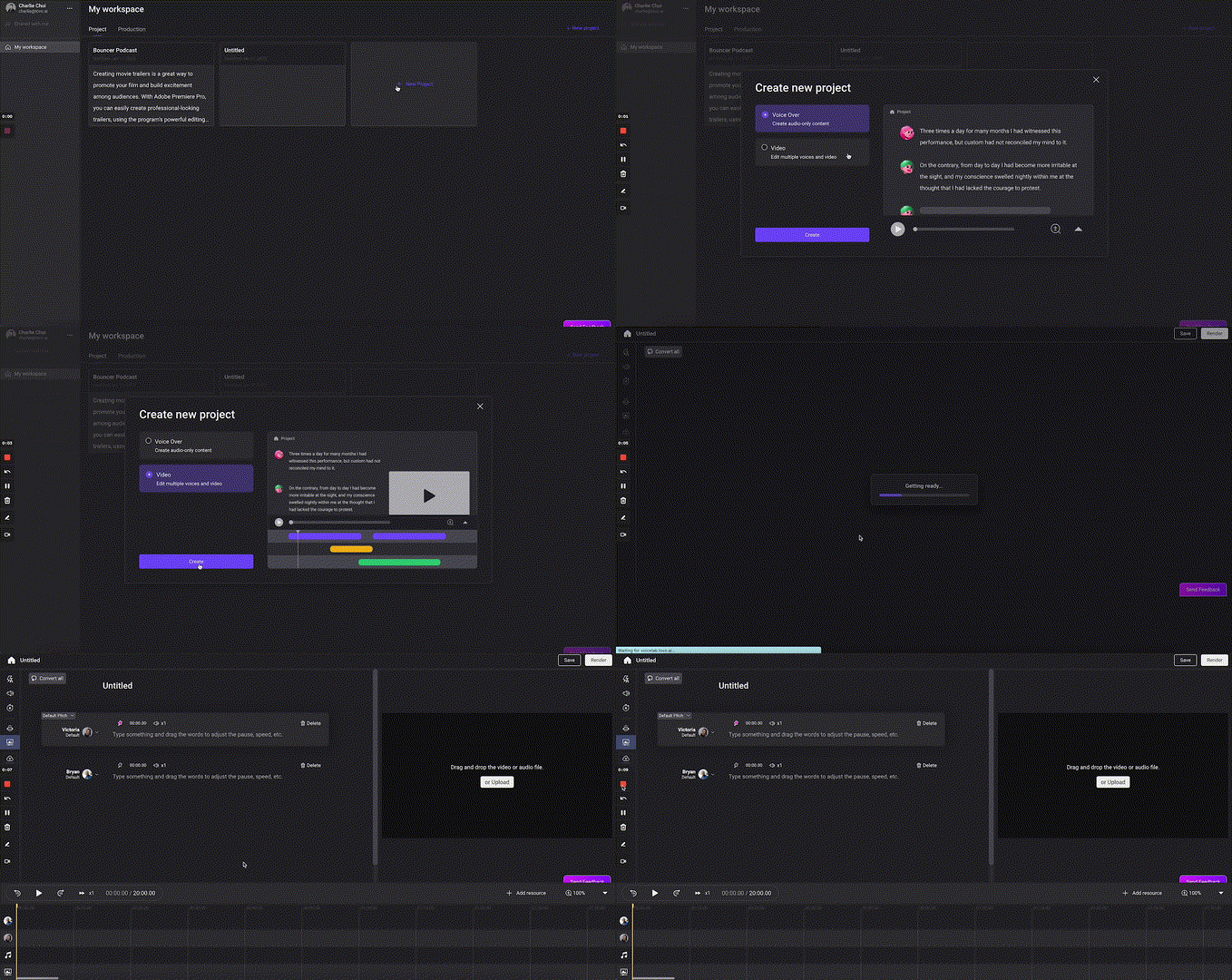
In this section, we are going to walk through the process of creating a video project. We know a lot of you create videos for all kinds of purposes. Marketing videos, product demos, educational videos, explainer videos, youtube videos…etc. Before, you had to download the audio and import it into a separate video editor, and…
-
Generating A Voiceover
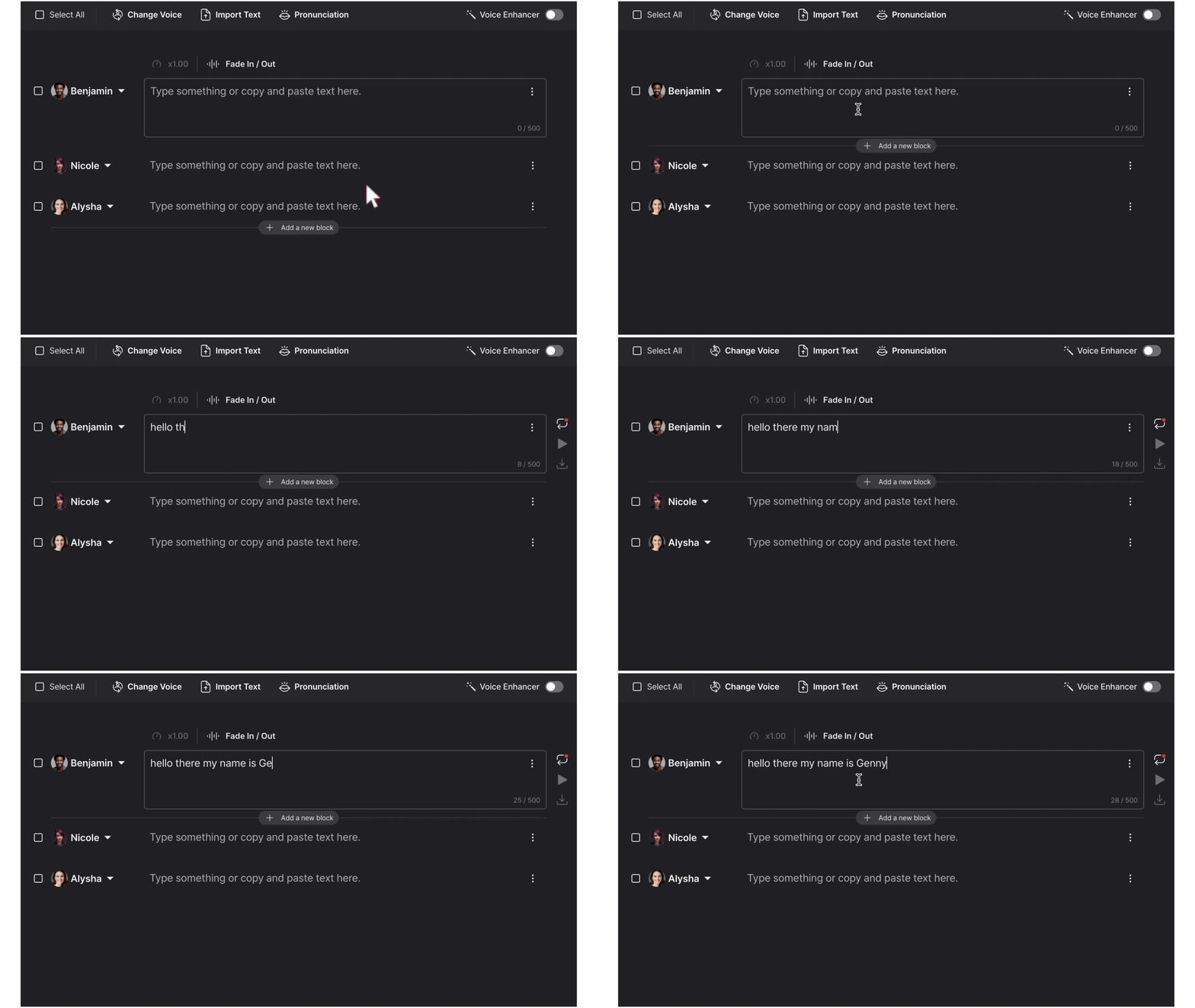
Generating a voiceover is as easy as typing into a word processor and takes just a few minutes to complete! Simply type, upload, or copy and paste a text, choose a voice, and then hit generate. Learn more below 👇 Step 1: Enter Text Enter your text into a voice block. You can either directly…
-
Creating A Project

You can create three types of projects in Genny – AI Voice and Video, Short Voiceover, and Auto Subtitles. First, log into Genny. Then, click New Project. Once you have selected the project that is most suitable for your needs, click the blue Start Project button to get creating! Find out more about the three…