Category: Perfecting Your Video Production
-
How To Use Voice Recording

If you want to just simply record your voice over a video rather than using TTS, you can do so by using “Voice Record”. Step 1: Getting Started First, have a project opened and ready. Click on a red microphone icon on the right side of the timeline editor. Step 2: Record Adjust the yellow…
-
How To Change Aspect Ratio and Background Fill
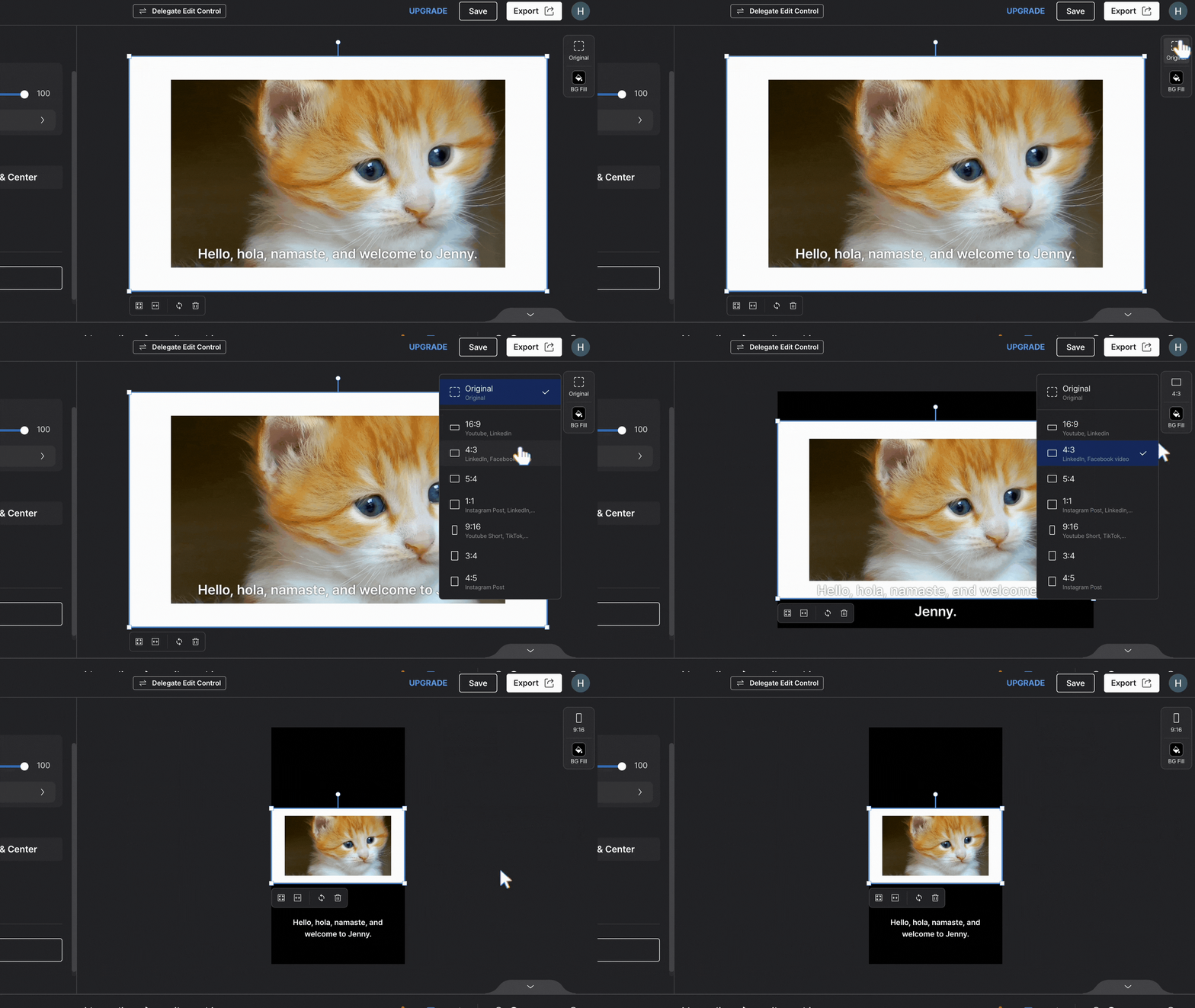
Expand your use of Genny using these two display features: Aspect Ratio and Background Fill. Follow the step-by-step guide below! Using Aspect Ratio The aspect ratio feature is essential for creating projects for different content-generating platforms (YouTube, YouTube shorts, Linkedin, Instagram posts, TikTok, etc.) To use this, click on “Aspect ratio” in the top-right corner…
-
How To Use Audio Fade In / Fade Out

The Audio Fade In/ Fade Out feature allows a professional intro, transition, and ending of audio blocks. It applies to music blocks, sound effect blocks, voice blocks, and video audio. In this tutorial, we’ll go through the fundamentals of how to use the Audio Fade In/ Fade Out feature for enhancing your audio editing skills.…
-
Using The Timeline Editor
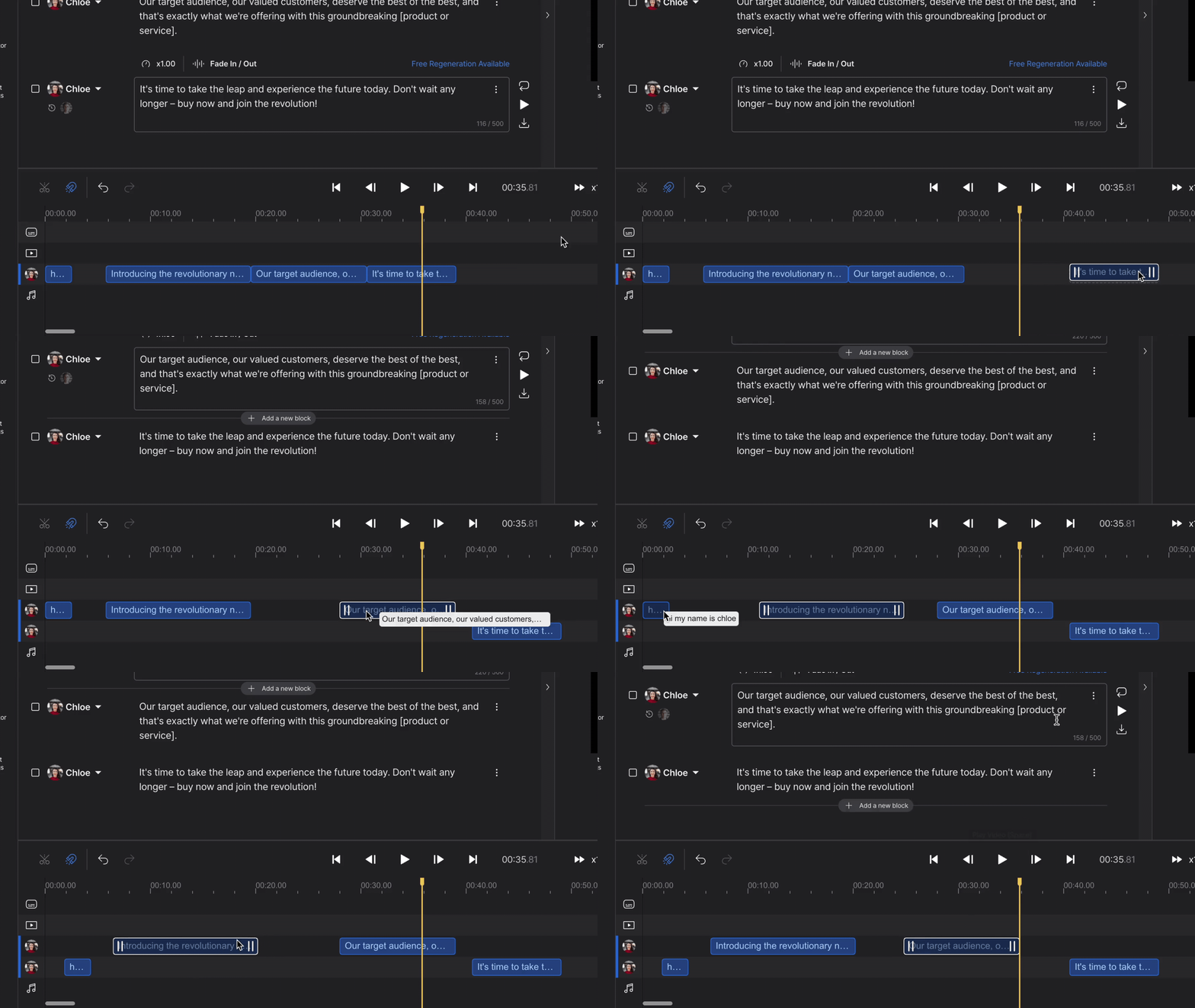
The Timeline Editor is a powerful tool to help you edit your audio and video elements together into one piece of content. Use this tool to handle the timing of videos, voiceovers, music, and sound effects with millisecond control. Using the Timeline Editor is invaluable when you have multiple elements that need to be timed…
-
Adding Subtitles

Adding subtitles to your video takes just a few clicks and instantly increases your reach to new audiences. In this guide, we’ll take you through the steps to get you generating your subtitles in minutes! Step 1 – Select Subtitle Option We recommend adding subtitles as the last step before exporting. This is especially important…
-
How To Resample Downloaded Audio File Using Audacity
When you download audio files from Genny, it will be 44.1 kHz. To resample into higher or lower sampling rate, you can use free software like Audacity to do so. Here are the step-by-step. 1. Open Audacity. 2. Load your audio file into Audacity by drag and drop, or by going to File>Open>choose file. 3.…
-
Adding Music & Sound Effects
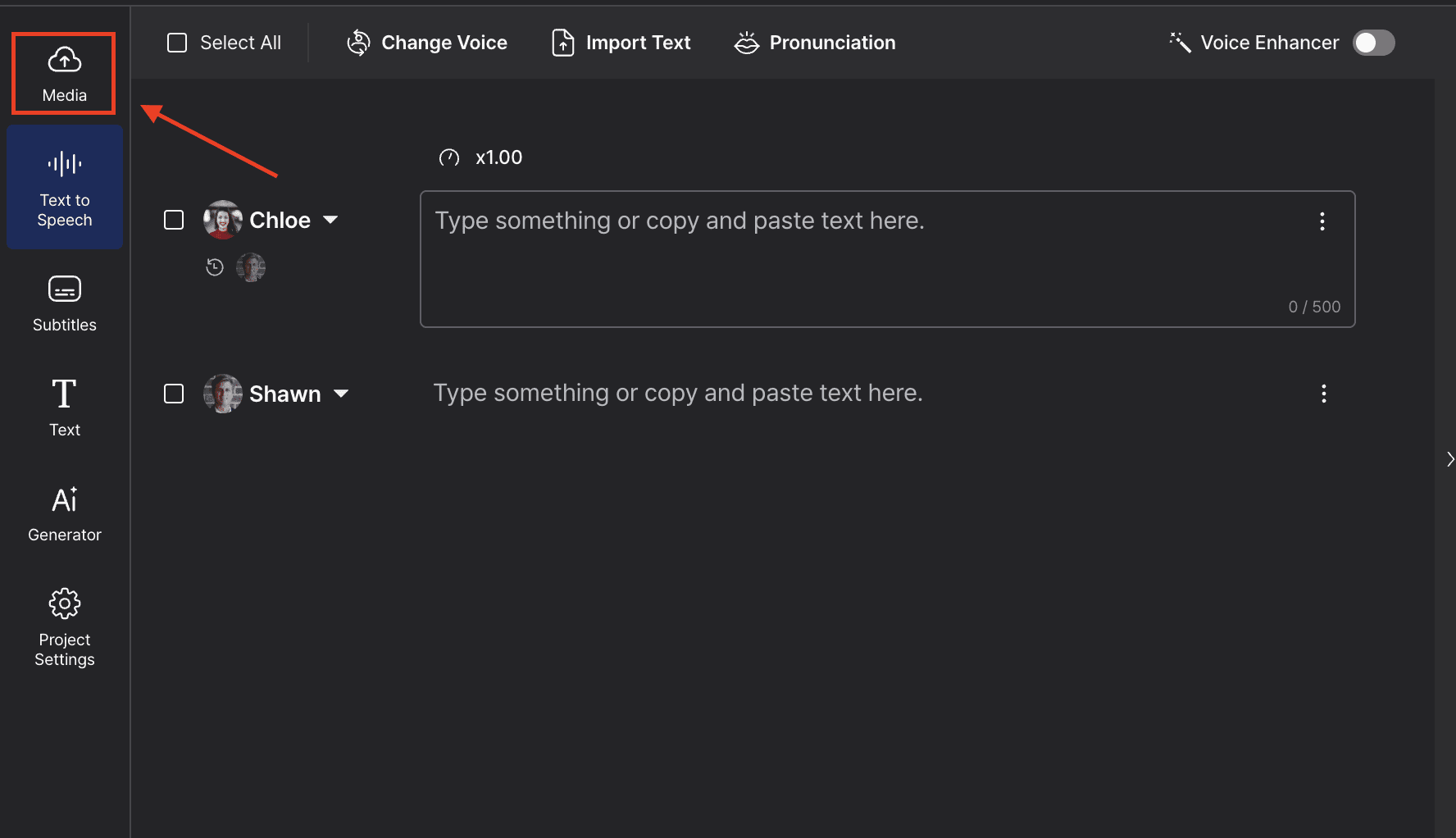
A great video is almost always accompanied by great music and sound effects. We provide a basic library of license-free music that you can choose from, or you can upload your own. Here’s how to get started. Adding Audio To Your Project Step 1 Click on “Media” on the left-hand side. Step 2 Next, click…