Category: Creating A More Natural Voiceover
-
How To Adjust Speed

Adjusting speed is easy in Genny. Follow the step-by-step guides below! Changing Speed You can change the speed of any voice and each individual voice block by clicking on the Speed icon at the top of the voice block. You can also change the speed for multiple voice blocks in one go in the workspace.…
-
How To Use Voice Enhancer
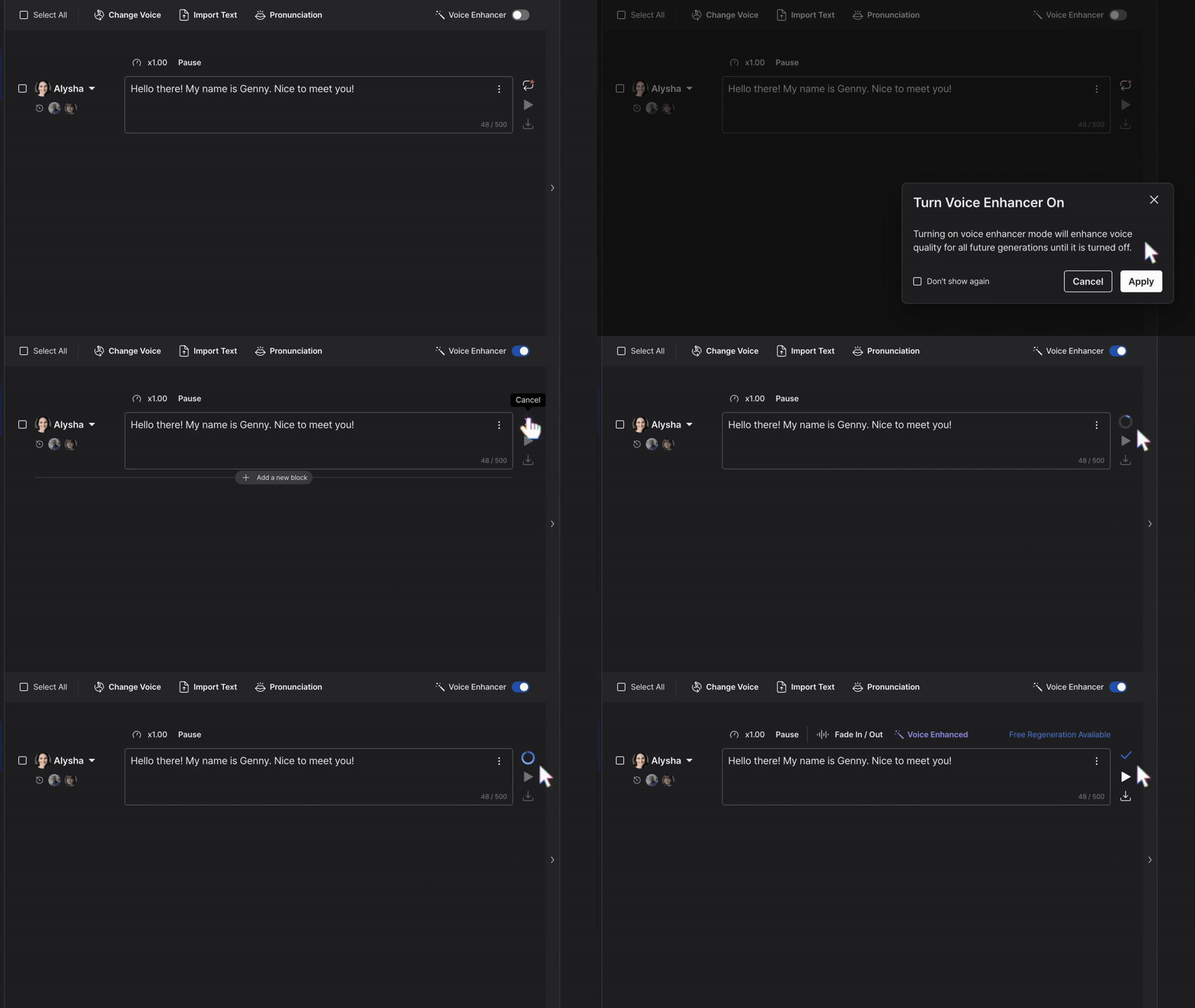
Our Voice Enhancer feature enhanced your AI voices generated in Genny for clearer, crisper, and higher quality voices! Here are the steps to using the Voice Enhancer tool! Step 1: Enter text Enter your text into a voice block. You can either directly enter your text by typing it into the voice block or copying…
-
Pro Voices: Discover Best Practices And Troubleshooting Tips
Pro voices are magical. They produce near-human-level quality voices with natural inflections and filled with emotions that fit the context. However, there are some pointers that you need to know in order to bring out the best performance from Pro voices. While Pro voices provide much higher performance than regular premium voices, they are still…
-
What To Do When Your Voiceover Sounds Weird.
Sometimes the AI might speak in a weird way at the end of the sentence or pronounce some words oddly. Whenever an unexpected result occurs, the first thing we always say is to regenerate – if you do not edit the sentence and just regenerate, it will not affect your generation credit. However, here are…
-
Getting Numbers Correct
Numbers can be tricky with text to speech systems. Say you wrote 1979. Did you mean the year nineteen seventy-nine, or did you mean the number one thousand nine hundred seventy-nine? The text to speech system has no way of knowing exactly which way you would like it to pronounce the number. It will guess…
-
How To Add Pauses

The Pause feature captures the intonations and variability of human speech. To bring your voice generation to another level of authenticity, try using our Pause feature! Step 1: Getting Started Click the Pause icon on the left-hand panel. Step 2: Adding Pauses To put a Pause after a word, click a word and select the…
-
Adding Emphasis To Words
When you are using our Rapid voices, you can add emphasis to individual words to add more energy and deliverability to your voiceover. After all, a sentence can mean very different things depending on what word is emphasized. Click on your voice box and select “Emphasis” located just above. Next, click on the words that…
-
Using The Pronunciation Editor
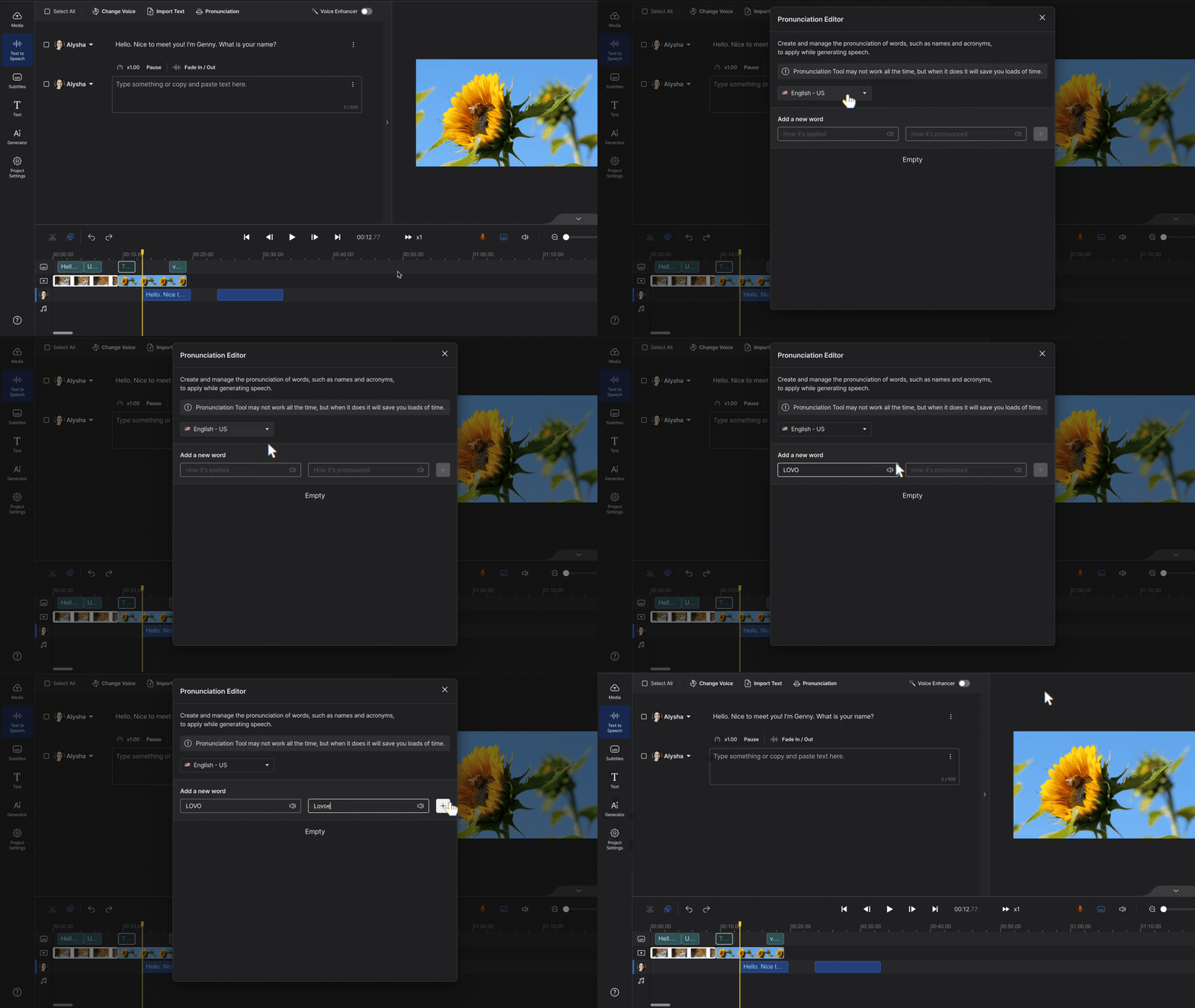
Sometimes the AI won’t say things the way you like. Like pronouncing your client’s brand name wrong 🫠. Our AI is constantly improving and getting better at pronouncing words correctly, but you got a project due tomorrow – what should you do? Well, you have two choices: 1. Spell the word out as it sounds…