Category: Getting Started
-
Undo and Redo
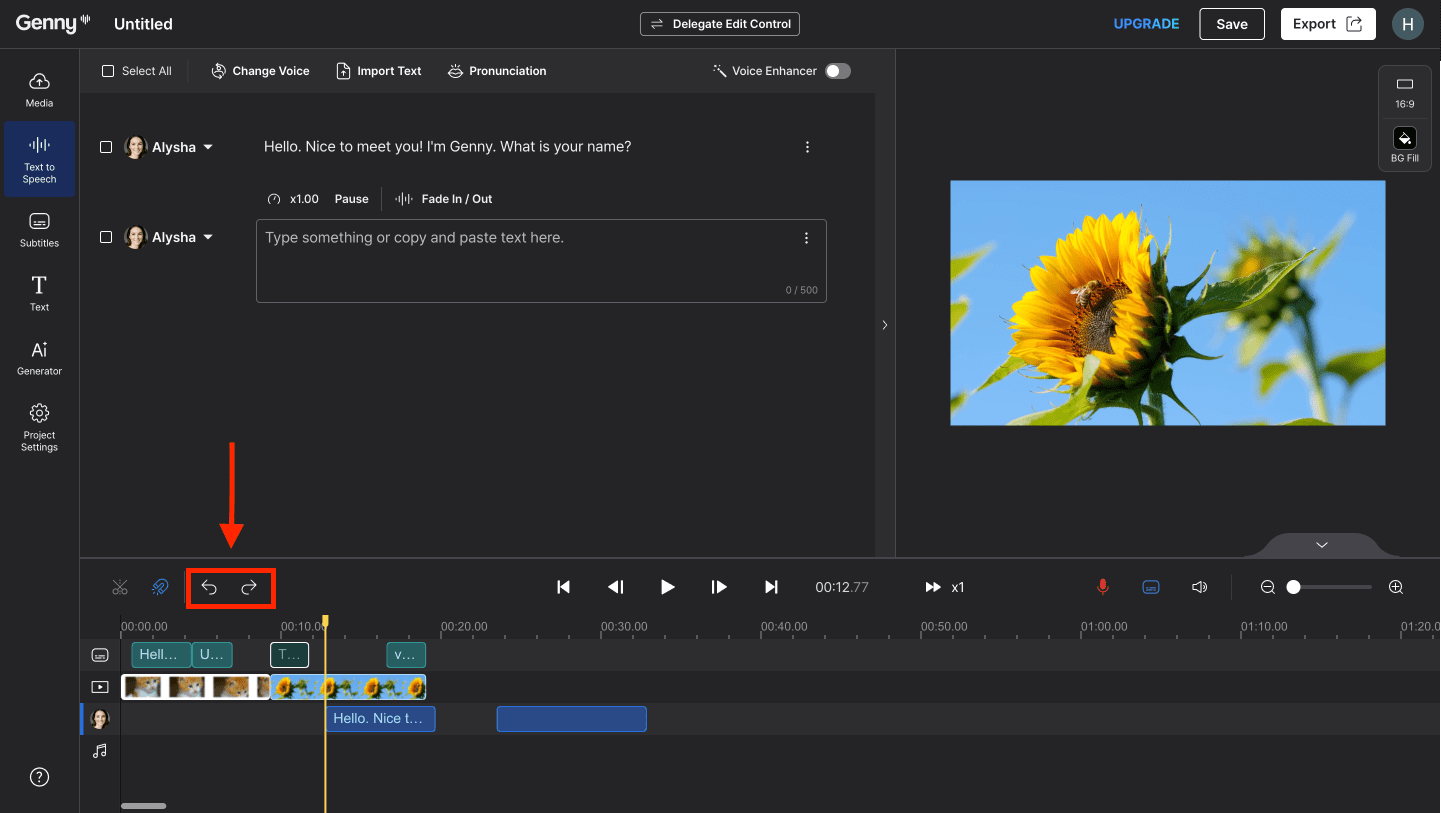
Made a mistake? Don’t worry! You can undo it easily. Simply to Ctrl+Z/Cmd+Z for undo and Ctrl+Shift+Z/Cmd+Shift+Z for redo. You can do this for both voice blocks and timeline blocks!
-
Uploading A Text Document

Apart from typing directly into the voice block, you can also upload documents into the editor. The file types that Genny accepts are text files (.txt) and Microsoft Word document files (.docx) It’s super simple and takes just two steps to upload your doc! 1. First, click the “Import Text” button on the top-left. 2.…
-
Choosing The Perfect TTS Voice For Your Content

Choosing the perfect Text to Speech voice for your content In this section, we will explore how to choose the perfect text-to-speech(TTS) voice for your content. First, click the speaker icon to access the Voice Selection Panel. LOVO Voices Once the voice selection is open, you will see we have 5 different voice types on…
-
Creating A Video
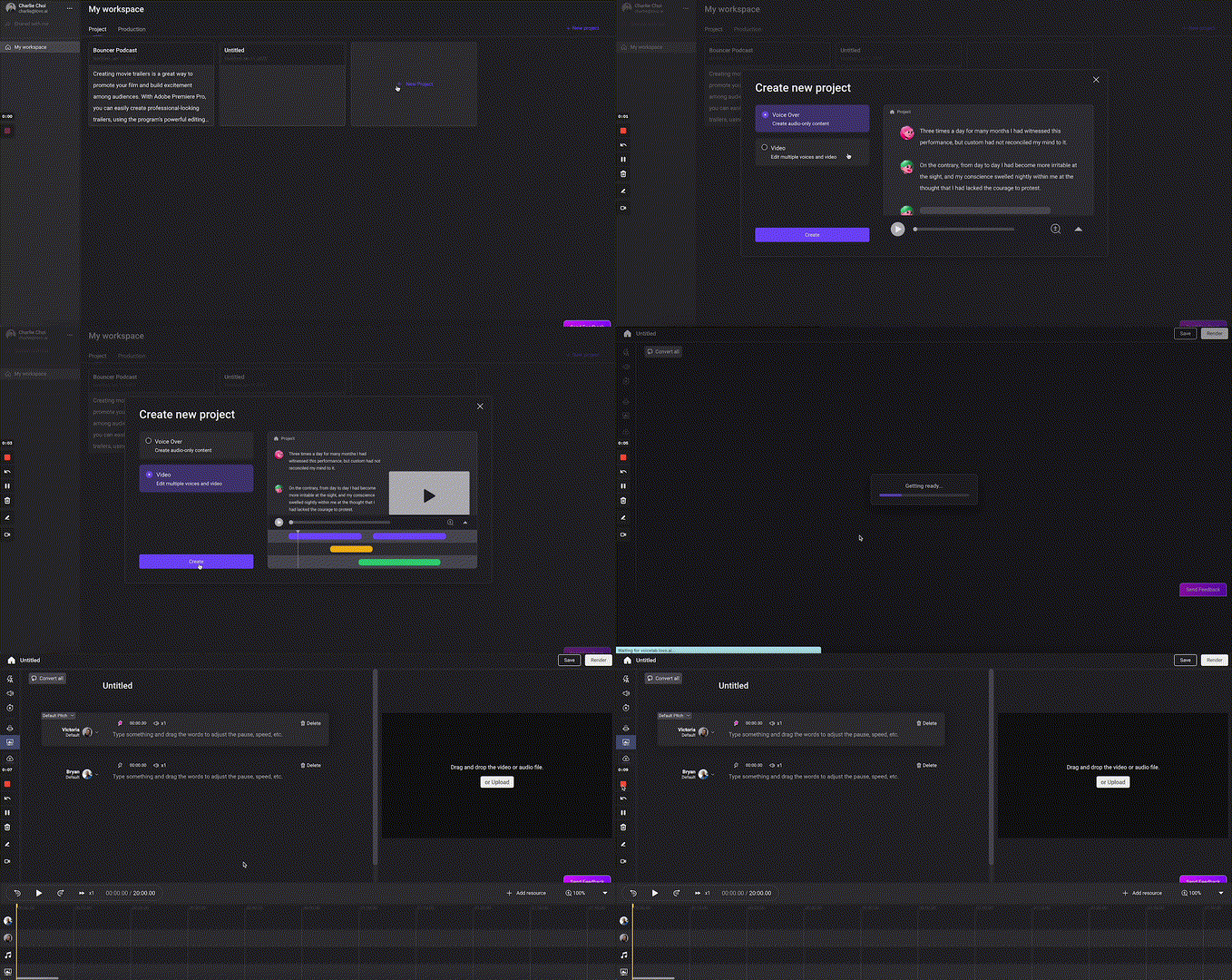
In this section, we are going to walk through the process of creating a video project. We know a lot of you create videos for all kinds of purposes. Marketing videos, product demos, educational videos, explainer videos, youtube videos…etc. Before, you had to download the audio and import it into a separate video editor, and…
-
Generating A Voiceover
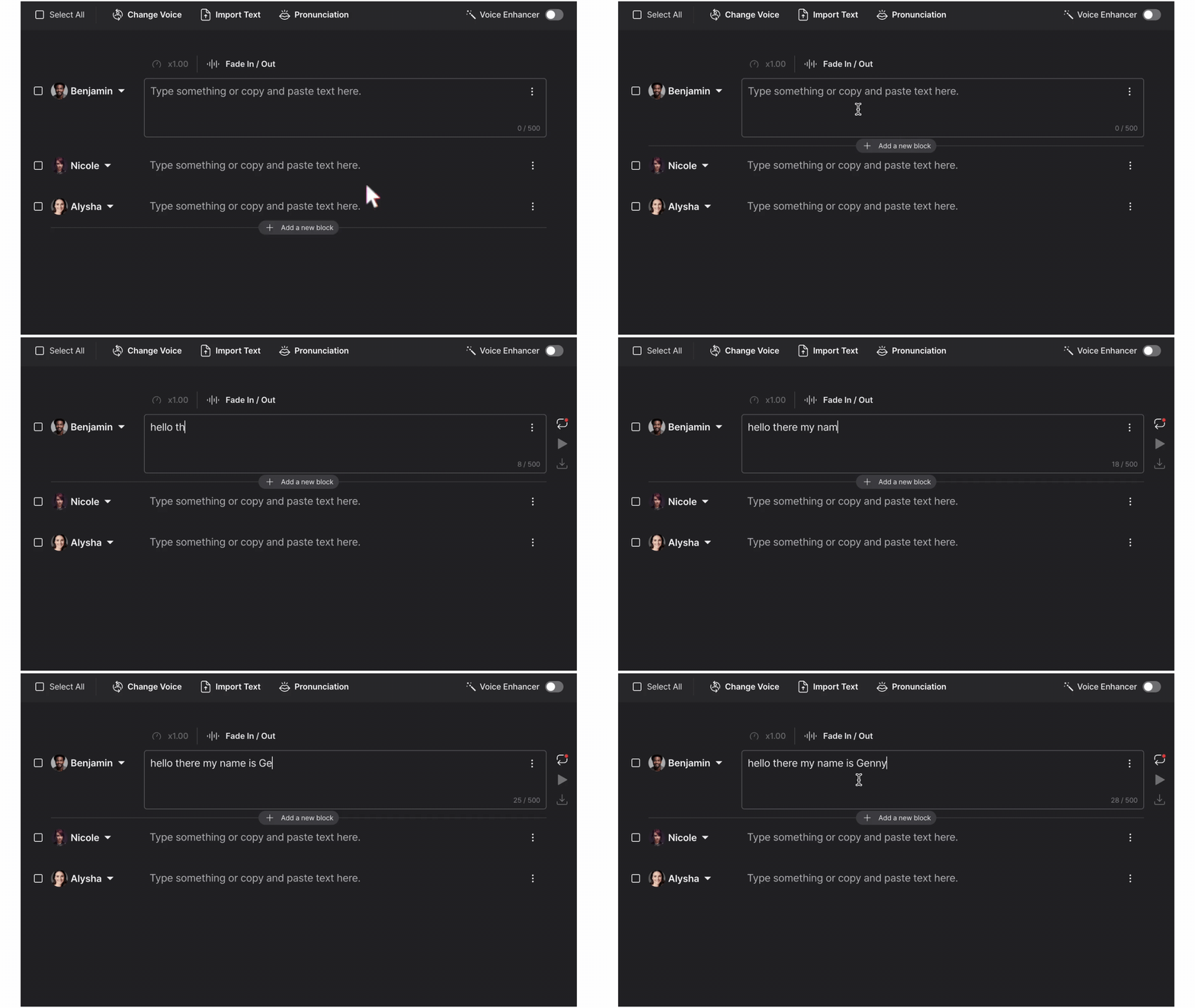
Generating a voiceover is as easy as typing into a word processor and takes just a few minutes to complete! Simply type, upload, or copy and paste a text, choose a voice, and then hit generate. Learn more below 👇 Step 1: Enter Text Enter your text into a voice block. You can either directly…
-
Creating A Project

You can create three types of projects in Genny – AI Voice and Video, Short Voiceover, and Auto Subtitles. First, log into Genny. Then, click New Project. Once you have selected the project that is most suitable for your needs, click the blue Start Project button to get creating! Find out more about the three…